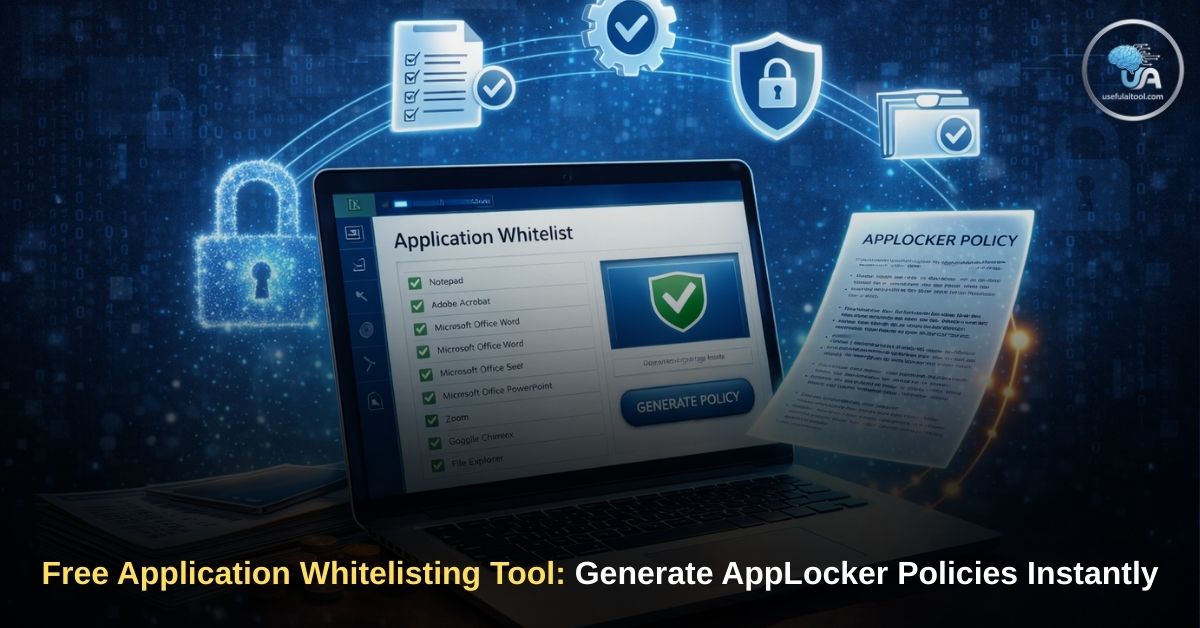
Free Application Whitelisting Tool for AppLocker Policy Generator: In today’s rapidly evolving cybersecurity landscape, traditional antivirus software is no longer enough. The old strategy of maintaining a “blacklist” of known malware signatures is fundamentally flawed because thousands of new, undocumented malware variants and ransomware strains are created every single day.
To truly secure an enterprise network, IT administrators are shifting toward a Zero Trust Execution Strategy. This is achieved through Application Whitelisting.
Instead of trying to guess what software is bad and blocking it, application whitelisting blocks everything by default and only allows explicitly approved, trusted software to run. To help system administrators deploy these strict policies efficiently, we built the ultimate Application Whitelisting Tool: The AppLocker XML Policy Generator.
What is Application Whitelisting?
Application Whitelisting (AWL) is a cybersecurity practice that restricts the execution of software on a computer or network to a pre-approved list of applications.
If a user inadvertently clicks a malicious link and downloads a ransomware executable, the malicious file will be blocked from running, simply because it is not on the whitelist. The system does not need to know that the file is ransomware; it only needs to know that the file is not on the approved list.
🛡️ AppLocker Policy Generator
Application Whitelisting XML Configurator
In a Windows environment, the most common native tools used to enforce these rules are AppLocker and Windows Defender Application Control (WDAC). Our generator specifically targets the AppLocker XML framework, allowing you to rapidly build rules and import them directly into your Group Policy Objects (GPO).
How to Use the AppLocker Policy Generator
Writing XML rules from scratch is tedious, error-prone, and frustrating. A single misplaced tag or incorrect Security Identifier (SID) can cause the policy to fail or, worse, lock administrators out of their own systems.
Our free tool automates the process. Here is how to use it:
Step 1: Select the Rule Action
Determine what the policy should do.
- Allow (Whitelist): This rule grants permission for the software to run.
- Deny (Blacklist): This explicitly blocks a piece of software from executing, even if it resides in an otherwise whitelisted folder.
Step 2: Define the Target User/Group
Who does this rule apply to? Our tool uses Windows Security Identifiers (SIDs).
- Everyone (S-1-1-0): The rule applies to any user logged into the machine.
- Administrators (S-1-5-32-544): The rule only applies to local admins.
- Standard Users (S-1-5-32-545): The rule restricts standard, non-admin users.
Step 3: Choose the Condition Type
This is the most critical step. How do you want to identify the safe software? You have three options:
- File Path Rule: This is the easiest rule to create but the least secure. It whitelists an entire folder directory (e.g.,
%PROGRAMFILES%\CustomApp\*). Any executable placed inside this folder will be allowed to run. Warning: Only use Path Rules for directories where standard users do not have write permissions. - File Hash Rule: This is the most secure method. It uses the cryptographic SHA256 hash of the specific executable. Even if a hacker replaces the legitimate
app.exewith a malicious file namedapp.exe, the hash will change, and the file will be blocked. You must provide the exact Hash and File Size in bytes. - Publisher Rule: This is the best balance of security and maintenance. It reads the digital signature of the software. For example, you can whitelist any software digitally signed by
O=MICROSOFT CORPORATION. This allows the software to update automatically without breaking your whitelist policy.
Step 4: Generate and Import
Click Generate XML Policy, and the tool will instantly output the precise XML syntax required. Click Copy Code, open your Windows Local Security Policy editor (secpol.msc), navigate to Application Control Policies > AppLocker, right-click, and select “Import Policy.”
The 3 Golden Rules of Application Whitelisting
Deploying an application whitelist across an enterprise network can be disastrous if not planned correctly. If you deploy a strict policy without the proper default rules, you will immediately crash Windows and lock yourself out of the system.
Follow these three golden rules before implementing the XML generated by our tool:
1. Always Create Default Rules First
Before you import custom XML policies, you must generate the default AppLocker rules. Windows needs to be able to run its core operating system files. The default rules automatically whitelist everything inside the C:\Windows and C:\Program Files directories for all users, while allowing Administrators to run files from anywhere.
2. Run in “Audit Only” Mode First
Never deploy a new AppLocker policy in “Enforce” mode on day one. Always set the policy to Audit Only. In this mode, Windows will not actually block any software. Instead, if a user runs an application that would have been blocked, it quietly generates an Event Log entry. Monitor these logs for a week to catch legitimate business software you forgot to whitelist.
3. Maintain Least Privilege
Application Whitelisting is useless if your end-users have Local Administrator rights. If a user is a local admin, they can simply disable the AppLocker service or place malware inside the whitelisted C:\Program Files directory. Whitelisting only works when paired with the Principle of Least Privilege (PoLP).
Expand Your Cybersecurity Toolkit
At Useful AI Tool, we build utilities that empower IT professionals. Cybersecurity requires a multi-layered approach.
If you are an IT administrator auditing your network, ensure that your organizational passwords are mathematically secure by utilizing our other tools. If you are sharing security guidelines or Zero Trust documentation with your team via social media or Slack, ensure your links look professional. Run your documentation URLs through our Social Media Meta Tag Generator to guarantee that your previews are formatted correctly, establishing trust with your staff before they even click the link.
FAQ on Free Application Whitelisting Tool
What is the difference between AppLocker and Windows Defender Application Control (WDAC)?
AppLocker is the legacy application whitelisting feature built into Windows Enterprise/Education editions. It is identity-based, meaning you can apply rules to specific users or groups. WDAC is the modern, more secure framework that operates closer to the hardware kernel, but it applies to the entire machine, regardless of which user is logged in.
Is Application Whitelisting foolproof?
No cybersecurity measure is 100% foolproof. Hackers constantly look for “Living off the Land” (LotL) binaries. This involves using native, inherently trusted Windows tools (like PowerShell, Certutil, or MSHTA) to download and execute malicious code, bypassing the whitelist entirely.
Why did the generated XML rule not block the application?
Ensure that the “Application Identity” service is running in Windows Services (services.msc). AppLocker policies physically cannot enforce their rules unless this service is set to start automatically.
Can I use this tool for macOS or Linux?
No. The XML generated by this tool is strictly formatted for the Microsoft Windows AppLocker schema. macOS uses different mechanisms (like Gatekeeper and MDM payloads), and Linux utilizes frameworks like fapolicyd or AppArmor.