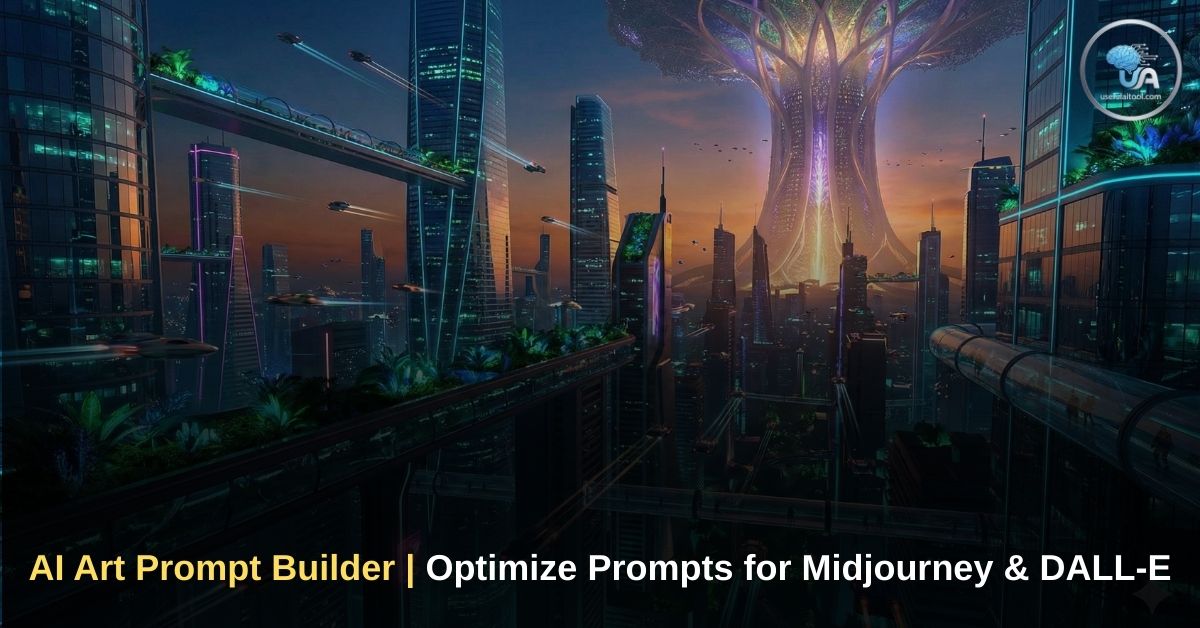
Free AI Art Prompt Generator 2026 (AI Art Prompt Builder): Welcome to the era of AI creativity. Whether you are using Midjourney v6, DALL-E 3, or Stable Diffusion, you have likely realized one hard truth: AI is only as smart as the instructions you give it.
You imagine a “Cyberpunk City,” type it in, and get a blurry, boring image. Meanwhile, you see other creators posting hyper-realistic, 8K masterpieces that look like they belong in a museum or a Hollywood movie. What is the difference?
The difference is the Prompt.
“Garbage in, garbage out.” If you give the AI a vague idea, it gives you a vague result. To get professional results, you need to speak the AI’s language—using specific keywords for lighting, camera angles, rendering engines, and art styles.
But memorizing hundreds of technical keywords like “Octane Render,” “Volumetric Lighting,” or “Isometric View” is impossible for a beginner.
That is why we built the UsefulAITool AI Art Prompt Generator. It acts as your personal “Prompt Engineer,” turning your simple ideas into complex, detailed, and highly effective text prompts in a single click.
How to Use the AI Art Prompt Generator
AI Art Prompt Generator
Create professional prompts for Midjourney & DALL-E 3
Our tool is designed to be “Click & Create.” You don’t need to be a coding expert or an artist. Here is the step-by-step workflow to get the perfect image:
Step 1: Enter Your Base Idea
Start with the core subject. Keep it simple.
- Bad: “A cool car.”
- Good: “A futuristic sports car driving through Tokyo at night.” Enter this in the first text box.
Step 2: Select an Art Style
This dictates the “Vibe” of the image.
- Photorealistic: For images that look like real photos.
- Pixar/Disney 3D: For cute, animated characters.
- Cyberpunk/Synthwave: For neon colors and futuristic tech.
- Oil Painting: For a classic, artistic look like Van Gogh.
Step 3: Choose Lighting & Camera
Lighting changes the mood. “Golden Hour” makes things warm and emotional, while “Neon Lights” makes them edgy. Camera angles define the perspective. Use “Drone View” for landscapes or “Macro Lens” for extreme close-ups of insects or jewelry.
Step 4: Generate & Copy
Click the “Generate Magic Prompt” button. Our tool will combine your inputs with hidden “Quality Boosters” (like 8k resolution, masterpiece, trending on ArtStation) to ensure the final result is crisp and detailed.
Explore More Useful AI Tools
- YouTube Income Calculator: Planning to start an AI Art channel? Check how much you can earn.
- Temp Number for OTP: Need a second account for Discord/Midjourney? Use a temporary number.
The Anatomy of a Perfect AI Prompt
To understand why our tool works so well, you need to understand the structure of a high-quality prompt. A professional AI prompt usually consists of five key elements:
1. The Subject (The “What”)
This is the main focus of your image. Be specific. Instead of “A dog,” try “A fluffy Golden Retriever puppy wearing a space suit.”
2. The Medium (The “How”)
How should the image look? Is it a photograph, a 3D render, a sketch, or a painting?
- Keywords to use: Digital Art, Unreal Engine 5 Render, Pencil Sketch, Polaroid Photo, Vector Illustration.
3. The Environment (The “Where”)
Don’t leave your character floating in a white void. Describe the background.
- Keywords to use: In a magical forest, inside a sci-fi spaceship, on a busy New York street, underwater coral reef.
4. Lighting and Color (The “Mood”)
Lighting is what separates amateur AI art from professional art.
- Cinematic Lighting: Dramatic shadows and highlights (like a movie).
- Volumetric Lighting: God rays (beams of light) shining through fog or dust.
- Softbox Lighting: Even, studio-quality lighting for portraits.
5. Technical Parameters (The “Quality”)
These are the keywords that tell the AI to “try harder.”
- Keywords: 8k, Ultra-detailed, Sharp focus, HDR, Masterpiece.
Mastering Midjourney Parameters (Advanced Guide)
If you are using Midjourney, you have access to special “Parameters” that go at the end of your prompt. Our tool helps you select these, but here is what they actually do:
Aspect Ratio (--ar)
Midjourney generates square (1:1) images by default. You must change this for different use cases:
--ar 16:9: Widescreen. Perfect for YouTube thumbnails, desktop wallpapers, and cinematic shots.--ar 9:16: Vertical. Essential for Instagram Reels, TikTok backgrounds, and mobile wallpapers.--ar 21:9: Ultra-wide. Used for movie-like panoramic shots.
Chaos (--c 0 to --c 100)
This controls how “weird” or distinctive the results are.
- Low chaos (0-10) gives reliable, expected results.
- High chaos (50-100) gives unexpected, artistic, and sometimes crazy results.
Stylize (--s 0 to --s 1000)
This tells Midjourney how strictly it should follow its own artistic training versus your prompt.
--s 50: Follows your prompt literally (good for logos).--s 750: Makes the image look very artistic and pretty, but might stray slightly from your description.
DALL-E 3 vs. Midjourney vs. Stable Diffusion: Which Prompt Style to Use?
Our AI Art Prompt Generator creates prompts that work generally well across all platforms, but each AI engine has a slightly different “personality.”
DALL-E 3 (ChatGPT Plus / Bing Image Creator)
- Style: Loves natural language. You can talk to it like a human.
- Prompt Strategy: Use full sentences. “Create an image of a cat who is a doctor.”
- Our Tool’s Role: It adds the descriptive details (lighting, texture) that DALL-E needs to make the image look professional rather than generic.
Midjourney (Discord)
- Style: Loves comma-separated keywords and parameters.
- Prompt Strategy: “Cat doctor, hospital background, cinematic lighting, hyper-realistic, –ar 16:9”
- Our Tool’s Role: Perfectly structures the keywords and adds the technical parameters (
--ar,--v) automatically.
Stable Diffusion (Local/WebUI)
- Style: Relies heavily on “Tags” and “Negative Prompts.”
- Prompt Strategy: “Cat, doctor, uniform, stethoscope, 8k, sharp focus, artstation.”
- Our Tool’s Role: Generates the high-value tags that Stable Diffusion models (like SDXL) recognize to boost quality.
Top 5 Mistakes to Avoid in AI Prompts
If your images still look bad, you might be making one of these common mistakes:
- Too Vague: “A nice view” is a bad prompt. “A sunset view over the Swiss Alps with snow-capped mountains” is a good prompt.
- Conflicting Terms: Don’t ask for “Photorealistic” and “Cartoon style” in the same prompt. The AI will get confused and create a messy hybrid.
- Overloading: Don’t write a 500-word essay. AI models have a “token limit.” Keep the main subject at the start of the prompt.
- Ignoring Lighting: Without lighting keywords, images often look flat and 2D. Always specify a light source.
- Forgetting Aspect Ratio: If you need a wallpaper, don’t generate a square image. You cannot “uncrop” it easily later without losing quality.
FAQs on Free AI Art Prompt Generator 2026
Q1: Is this AI Prompt Generator free?
Yes! The tool on UsefulAITool.com is 100% free to use. You can generate unlimited prompts for personal or commercial projects.
Q2: Does this work for Midjourney v6?
Absolutely. We update our keywords regularly. The generated prompts include high-quality descriptors like “Photorealistic” and “8k” which are essential for the realism of Midjourney v6.
Q3: What is a “Negative Prompt”?
A negative prompt tells the AI what NOT to include. For example, if you are generating a portrait, you might put “ugly, deformed hands, extra fingers, blurry” in the negative prompt section to ensure a clean result.
Q4: Can I use these prompts for logos?
Yes. Select “Minimalist Vector” or “2D Flat” from the Style dropdown in our tool. This is best for creating clean, scalable graphics for logos.
Q5: Why do I need to mention “8k” or “Unreal Engine”?
Even though the AI isn’t actually using a game engine, these keywords act as “quality triggers.” During the AI’s training, it learned that images tagged with “Unreal Engine” or “8k” are usually high quality. So, using these words forces the AI to retrieve its highest-quality data.
Conclusion: Unlock Your Imagination
AI Art is not just about technology; it’s about communication. The better you can describe your vision, the better the AI can paint it.
You don’t need to be a writer or a prompt engineer to create stunning visuals. With the UsefulAITool AI Art Prompt Generator, you have the power of a professional studio at your fingertips.
Stop wasting credits on bad prompts.
- Type your idea.
- Select a style.
- Generate magic.
Scroll up and try the tool now to create your first masterpiece!