Imagine this: You just spent a small fortune on a brand-new, ultra-wide 144Hz gaming monitor. You unbox it, plug it in, and boot up your favorite game, expecting butter-smooth gameplay. But strangely, it feels exactly like your old monitor.
You aren’t imagining things.
The biggest secret in the PC building world is that Windows defaults almost all new monitors to 60Hz out of the box. Millions of gamers and professionals are currently using high-end hardware that is artificially bottlenecked by their operating system settings.
That is why you need a reliable Monitor Refresh Rate Tester.
Monitor Refresh Rate Tester
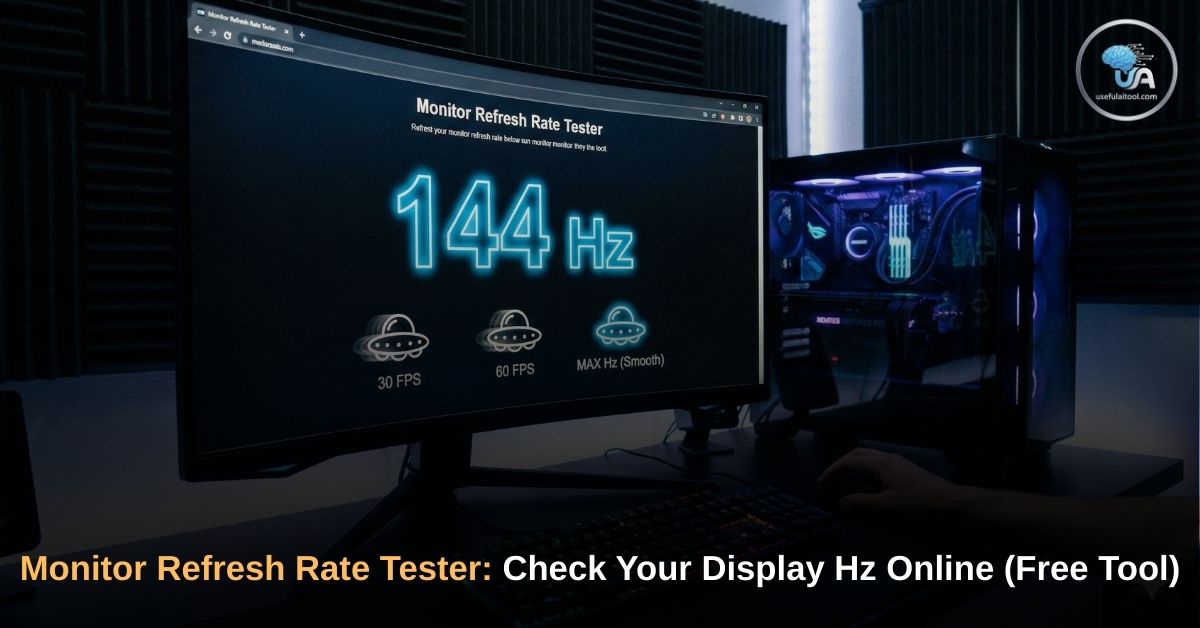
Welcome to the UsefulAITool Hz Tester. Our free, browser-based utility instantly detects your screen's true refresh rate and provides a visual smoothness test to help you spot lag, stuttering, and dropped frames. Stop guessing and start verifying.
What Exactly is a Monitor Refresh Rate (Hz)?
Before you can fix your display, you need to understand what the numbers mean.
Refresh Rate, measured in Hertz (Hz), refers to the number of times your monitor updates with a new image every single second. Think of a video as a flipbook; the faster you flip the pages, the smoother the motion appears.
- 60Hz (The Standard): Your screen updates 60 times per second. This is perfectly fine for office work, browsing the web, and watching YouTube or Netflix (which are usually shot in 24 to 60 frames per second).
- 120Hz / 144Hz / 165Hz (The Sweet Spot): This is the entry point for competitive gaming. Motion blur is drastically reduced, making it easier to track moving targets in games like Call of Duty or Valorant. Scrolling through long web pages also feels incredibly fluid.
- 240Hz / 360Hz+ (The Esports Tier): Designed for professional gamers where every millisecond of reaction time matters. The difference between 144Hz and 240Hz is subtle to the average user, but critical to a pro.
FPS vs. Hz: What is the Difference?
These two terms are frequently confused, but they represent two different pieces of hardware.
- FPS (Frames Per Second): This is how many images your computer's graphics card (GPU) is generating.
- Hz (Hertz): This is how many images your monitor can actually show you.
The Golden Rule: If your PC pushes 200 FPS, but your monitor is only set to 60Hz, you will only see 60 frames. The extra 140 frames are wasted. (Curious about your PC's power? Test it with our FPS Calculator PC Build tool).
How Our Monitor Refresh Rate Tester Works
You don't need to download clunky software to test your screen. Our online tool uses your web browser's built-in requestAnimationFrame API. This command asks your browser to synchronize a background timer directly with your monitor's physical redraw cycle.
Here is how to read your results:
1. The Live Hz Counter
The large number at the top of the tool is your real-time refresh rate. Give it 2 to 3 seconds to stabilize. If it hovers around 59 or 60, your screen is running at 60Hz. If it climbs to 143 or 144, you are successfully running at 144Hz.
2. The Visual Smoothness Test (UFO/Box Test)
Numbers are great, but seeing is believing. Below the counter, you will see three objects moving horizontally across the screen.
- The 30 FPS Track: This will look visibly choppy and stuttery.
- The 60 FPS Track: This will look standard.
- The MAX Hz Track: If your monitor is set to 120Hz or higher, this track will look significantly smoother and sharper than the 60 FPS track.
Note: If all three moving tracks look identical, your monitor is locked at 60Hz (or lower).
Step-by-Step: How to Change Your Refresh Rate
If our tester revealed that your expensive monitor is stuck at 60Hz, don't panic. Here is how to unlock its full potential in less than a minute.
Unlocking High Hz on Windows 10 & 11:
- Right-click anywhere on your empty desktop and select Display settings.
- Scroll down to the bottom and click on Advanced display (or Advanced display settings).
- Look for the section labeled Choose a refresh rate.
- Click the dropdown menu and select the highest number available (e.g., 144Hz, 165Hz).
- Your screen will briefly go black. Click Keep Changes before the timer runs out.
- Come back to our tester and refresh the page to verify!
Unlocking High Hz on Mac:
- Open the Apple Menu and select System Settings (or System Preferences).
- Click on Displays.
- Locate the Refresh Rate dropdown menu next to your resolution.
- Change it to ProMotion (120Hz) or the highest available option.
Troubleshooting: Why is My Refresh Rate Still Low?
If you went into your settings but the 144Hz or 240Hz option is completely missing, you likely have a hardware bottleneck. Check these three common culprits:
1. You Are Using the Wrong Cable
Not all cables are created equal. Old HDMI cables (like HDMI 1.4) do not have the bandwidth to carry 144Hz signals at 1080p or 1440p resolutions.
- The Fix: Swap your HDMI cable for a DisplayPort (DP) cable. DisplayPort is the industry standard for high-refresh-rate gaming.
2. You Plugged into the Motherboard
This is the most common mistake for new PC builders. If you have a dedicated Graphics Card (GPU) like an NVIDIA RTX or AMD Radeon, you must plug your monitor cable directly into the GPU ports (usually located horizontally near the bottom of the PC). If you plug it into the vertical motherboard ports near your USB slots, you are bypassing your graphics card entirely.
3. Outdated GPU Drivers
If you just built your PC or wiped your hard drive, Windows will use a basic display driver that caps your monitor at 60Hz.
- The Fix: Download the official software for your hardware (NVIDIA GeForce Experience or AMD Adrenalin) and install the latest Game Ready drivers.
FAQs on Monitor Refresh Rate Tester Online
Q: Can I use this tester on my smartphone or tablet?
Yes! High-end smartphones (like the iPhone Pro models or Samsung Galaxy S-series) feature 120Hz screens. Open this tool on your mobile browser to see if your phone's battery-saver mode is capping your screen at 60Hz.
Q: Why does the tester show 143Hz instead of exactly 144Hz?
This is completely normal. Due to slight variations in timing crystals inside your monitor and browser rendering limits, a 144Hz screen will often measure between 143.8Hz and 144.1Hz.
Q: Will a higher refresh rate make me better at games?
While it won't magically give you professional aim, a higher refresh rate drastically reduces system latency and motion blur. This means you see enemy movements milliseconds faster, which gives you a definitive competitive advantage.
Conclusion: Verify Before You Play
Don't let a simple Windows setting ruin your gaming experience. A high refresh rate monitor is one of the most noticeable upgrades you can make to your setup—but only if you actually turn it on.
Use the UsefulAITool Monitor Refresh Rate Tester whenever you buy a new screen, swap a cable, or update your drivers to guarantee you are getting the visual fidelity you paid for.
🚀 Explore More Tools for Gamers & Creators:
- Check Your PC Specs: Are you getting bottlenecked by your CPU? Check out our FPS Calculator PC Build.
- Test Your Reflexes: Put your newly unlocked 144Hz screen to the test with our Mouse Click Speed Test.
- Writing a Script? Working on a YouTube tech review? Listen to your draft out loud with our Script Reader AI Free.
(Disclaimer: This tool measures the refresh rate requested by your browser. Heavy background tasks or extreme battery-saving modes may temporarily affect the reading.)