Open Graph and Meta Tag Generator for Social Media | Have you ever pasted a link to your website on WhatsApp, Facebook, or Twitter (X), only to see a plain, boring blue link? No image, no description, just text.
If that happens, you are losing traffic. A lot of it.
In the digital world, first impressions happen in milliseconds. When a user sees a link on social media, they decide whether to click it based on the visual preview. A link with a large, high-quality image and a catchy title gets 40% more clicks than a plain text link.
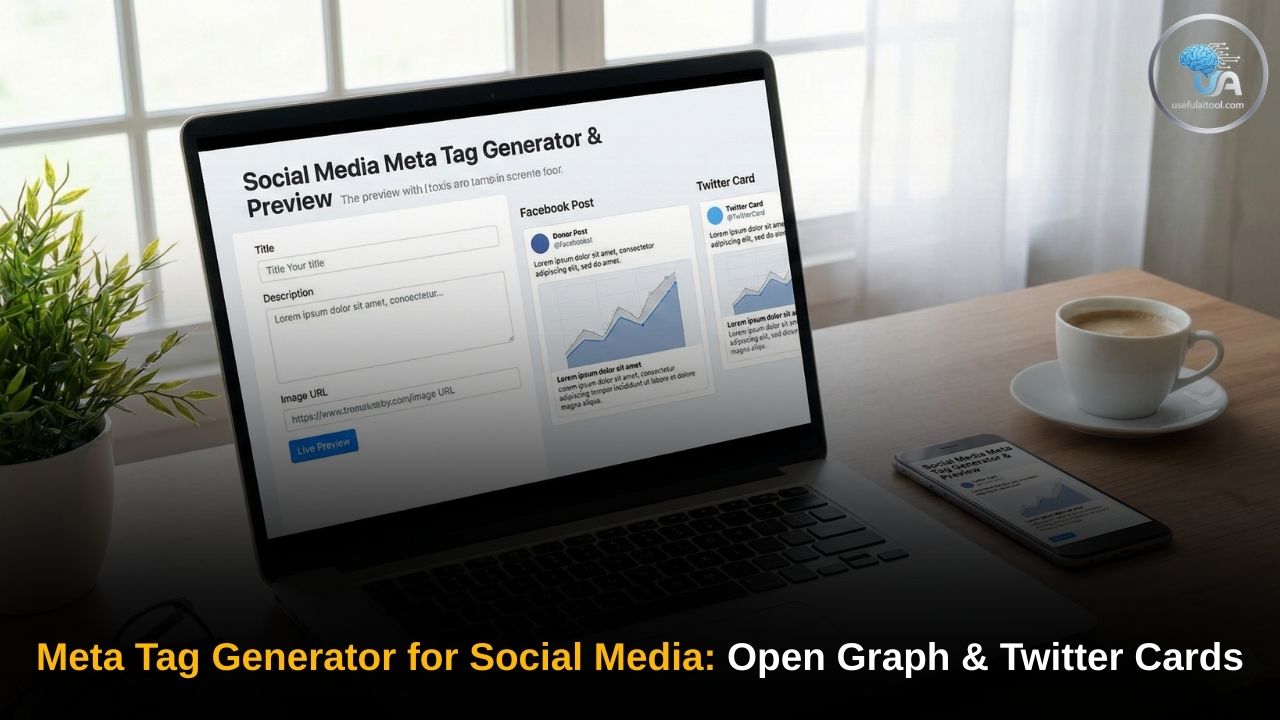
This is where our Free Social Media Meta Tag Generator comes in. Whether you are a developer, a blogger, or a business owner, this tool helps you create the necessary HTML code (Open Graph and Twitter Cards) to make your links look professional and clickable.
What Are Social Media Meta Tags?
Social media platforms like Facebook, LinkedIn, Pinterest, and Twitter cannot “read” your website like a human does. They need specific instructions on what to display when a link is shared. These instructions come in the form of Meta Tags located in the <head> section of your website’s HTML code.
🛠️ Open Graph Generator
Edit details to see how your link looks on Facebook & Twitter.
<!-- Meta Tags will appear here -->
There are two main standards you need to know:
1. Open Graph Protocol (OG Tags)
Created by Facebook in 2010, the Open Graph protocol is now the industry standard. It is used not just by Facebook, but also by LinkedIn, Pinterest, WhatsApp, Slack, and Discord.
Key OG tags include:
og:title: The headline of your content.og:description: A short summary of what the page is about.og:image: The URL of the image you want to display (the most important tag!).og:url: The canonical URL of the page.
2. Twitter Cards
While Twitter supports Open Graph, it also has its own proprietary tags called “Twitter Cards.” These allow for special layouts, such as the “Summary Card with Large Image,” which takes up more screen space and drives higher engagement.
Why You Must Use This Tool
Manually writing these tags is prone to errors. A missing quotation mark or a wrong property name can break your entire preview.
Also Try this Tool: The Ultimate Guide to Password Security in 2026: Why 16 Characters is the New Standard
Our Meta Tag Generator solves this by:
- Live Previewing: You can see exactly how your link will look on Facebook and Twitter before you touch your website code.
- Error-Free Code: The tool generates clean, valid HTML code ready to copy and paste.
- Optimized Formats: It ensures you are using the correct tags that modern social algorithms prefer.
-

Free Studocu Document Downloader Assistant: Access Study Notes & Guides Instantly
Free Studocu Document Downloader Assistant: Every college and university student knows the immense value of quality lecture notes, assignment solutions, and exam study guides. Platforms like Studocu have revolutionized academic collaboration by allowing learners worldwide to upload and share educational materials. However, when you are pressed for time right before midterms or finals, running into…
-
GDS Best State Predictor 2026-2027 | Find Safe State for India Post
GDS Best State Predictor 2026-2027: Every single year, millions of ambitious young minds across India look forward to the India Post Gramin Dak Sevak (GDS) recruitment cycle. With hundreds of thousands of vacancies announced across various postal divisions, the opportunity to secure a stable government job straight out of high school is an attractive prospect.…
-
Bilibili App Free Download APK Latest Version 2026 That Actually Works
Bilibili App Free Download APK Latest Version 2026: Bilibili has evolved from a niche ACG (Anime, Comic, and Games) hub into one of Asia’s largest video-sharing and streaming communities. Renowned for its vast library of licensed HD anime series, Chinese animation (Donghua), user-generated video content, and real-time bullet comments (“Danmaku”), Bilibili offers a unique entertainment…
Step-by-Step: How to Generate Your Tags
Using this tool is incredibly simple. Follow these steps to optimize your website links:
Step 1: Enter Site Details
Start by typing your Site Title and Description. Keep the title under 60 characters and the description under 160 characters to prevent them from being cut off on mobile screens.
Step 2: Add Your Image URL
This is the most critical step. Paste the direct URL of the image you want to use.
- Tip: The ideal size for social media images is 1200 x 630 pixels.
Step 3: Check the Live Preview
Look at the right side (or bottom on mobile) of the tool. You will see a real-time simulation of your Facebook and Twitter cards. Does the image look good? Is the title catchy?
Step 4: Copy and Paste
Once you are happy, click the “Copy” button in the generated code box. Paste this code between the <head> and </head> tags of your website’s HTML.
Where Do I Paste This Code?
Depending on how your website is built, the installation process varies slightly:
For Custom HTML Websites
Simply open your index.html or header file and paste the code right before the closing </head> tag.
Try this Free Tool for LinkedIn Ad Planner
For WordPress Users
If you are not using an SEO plugin, you can add the code to your header.php file (Appearance > Theme File Editor). However, if you use plugins like Yoast SEO or RankMath, they handle this automatically. You can use our tool to preview and write your content, then copy the title and description into your plugin settings.
For Shopify / Wix / Squarespace
Look for the “SEO” or “Social Sharing” settings in your page editor. Most of these platforms have specific fields where you can upload the “Social Sharing Image” and set the title.
Best Practices for High CTR (Click-Through Rate)
Ranking on Google is only half the battle. Winning the click on social media is the other half. Here are pro tips to maximize your results:
- Use Large Images: Always use the
summary_large_imageformat for Twitter (which our tool selects by default). Small thumbnails get ignored; big images stop the scroll. - Keep Titles Punchy: Don’t just put your brand name. Use a hook. Instead of “Home Page – MyBrand”, try “The Ultimate Tool for Content Creators | MyBrand”.
- Test Your Links: After updating your code, social media platforms might still show the old version because of “caching.” Use the Facebook Sharing Debugger or Twitter Card Validator to force them to fetch your new tags.
Troubleshooting: Why Is My Image Not Showing?
If you used our tool, pasted the code, and the image still isn’t appearing, check these common issues:
- Image Size: Is your image too small? Ensure it is at least 200×200 pixels (though 1200×630 is best).
- HTTP vs HTTPS: Ensure your image URL starts with
https://. Some platforms block insecurehttp://images. - Robots.txt: Make sure your image folder isn’t blocked by your robots.txt file. Facebook’s bot needs permission to crawl the image.
- Cache: As mentioned above, Facebook saves the first version of your link it sees. Go to the Facebook Sharing Debugger, enter your URL, and click “Scrape Again.”
FAQ on Meta Tag Generator for Social Media
What is the best image size for Open Graph?
The recommended size for 2025 is 1200 x 630 pixels. This creates a 1.91:1 aspect ratio that works perfectly across Facebook, Twitter, and LinkedIn.
Do I need both Open Graph and Twitter tags?
Ideally, yes. While Twitter can read Open Graph tags as a fallback, using specific Twitter Card tags (like twitter:image:alt) gives you more control and accessibility options.
Does this affect my SEO ranking?
Indirectly, yes. While Google doesn’t use OG tags for ranking, these tags increase social traffic. Higher traffic signals to Google that your content is popular and valuable, which can boost your authority.
Is this tool free?
Yes, our Social Media Meta Tag Generator is 100% free to use for unlimited websites.
Conclusion
Don’t let your hard work go unnoticed with a broken or boring link preview. Use the Useful AI Tool Meta Tag Generator to take control of how your brand appears on the timeline. A professional preview is the difference between a scroll and a click.
Bookmark this page and use it every time you publish a new blog post or landing page!