Word Two Column Converter Online Free – Format Text for Microsoft Word

Published on:
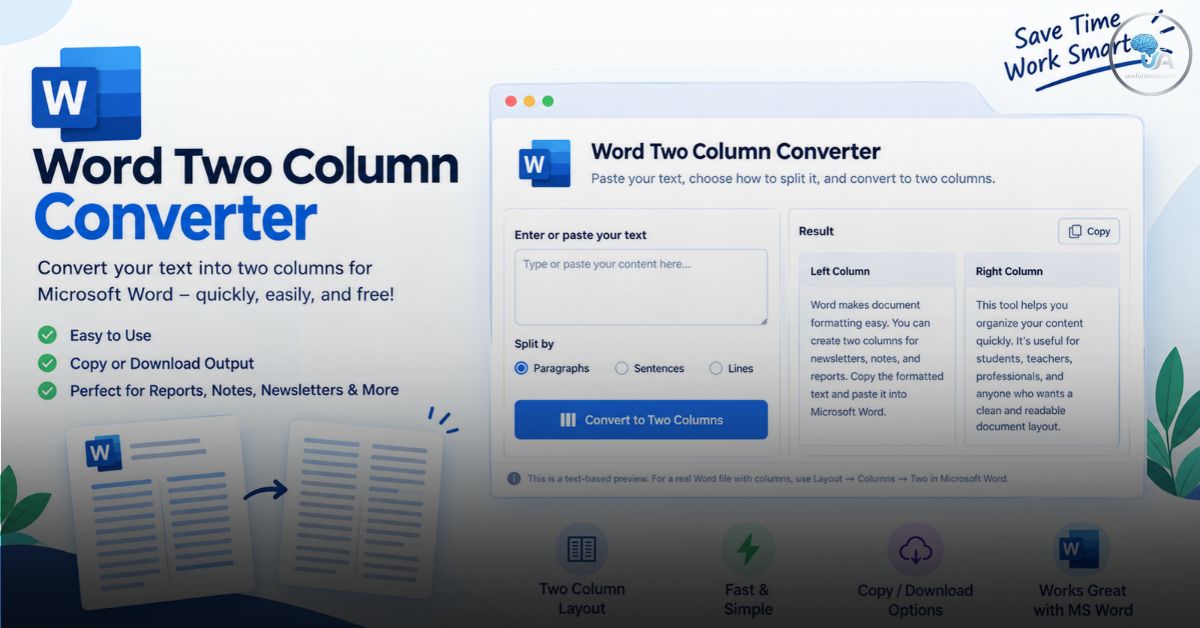
Word Two Column Converter: Need to format your text into two columns for a newsletter, assignment, report, brochure, or study notes? Our Word Two Column Converter helps you organize text into two sections quickly and easily. Instead of manually rearranging every paragraph, you can paste your content, select your preferred layout, and prepare it for use in Microsoft Word.
Whether you want to split a document into two halves, organize a list, prepare educational material, or improve the appearance of a document, this online tool can make the process easier.
You will also learn how to create columns in Microsoft Word and Google Docs, insert images, manage page breaks, add rows to tables, and perform other useful document-formatting tasks.
Word Two Column Converter
Use the tool below to organize your text into two columns.
Paste your text into the converter, choose how you want it divided, and generate a two-column text layout. You can copy the result and paste it into your document.
For a genuine newspaper-style, flowing two-column layout in Microsoft Word, open your document and select Layout → Columns → Two. This creates actual Word columns rather than two independent blocks of text.
What Is a Word Two Column Converter?
A Word Two Column Converter is an online formatting tool that helps users divide text into two sections for easier reading and organization. It is useful for preparing documents that contain lists, definitions, notes, vocabulary, short paragraphs, or other structured information.
For example, teachers can use two columns for vocabulary exercises, students can organize revision notes, and professionals can prepare compact reports. Bloggers and content creators may also find two-column formatting useful for newsletters, printable resources, and informational handouts.
Word Two Column Converter
Convert text into two columns online — free, fast and easy.
Converted Result
Preview your text below. Download the Word file for an editable two-column document.
Left Column
Right Column
The best formatting method depends on your needs. If you want text to flow from the bottom of the first column to the top of the second, use Word’s built-in column feature. If you want two separate blocks of content side by side, a two-column text formatter may be more suitable.
Key Features of Our Word Two Column Converter
- Simple text input: Paste content directly into the editor.
- Flexible text splitting: Divide content by paragraphs, sentences, or lines.
- Two-column organization: Create a left section and a right section.
- Quick copying: Copy the formatted result into Microsoft Word or another editor.
- Free and browser-based: Use the tool without installing desktop software.
- Useful for different documents: Organize notes, lists, vocabulary, study material, and reports.
- Easy workflow: Prepare your content before applying final document formatting.
Always review the converted text before using it in an important document. Check the paragraph order, punctuation, headings, and spacing.
How to Use the Word Two Column Converter
Follow these simple steps to prepare your text.
Step 1: Open the Online Converter
Visit this page on Useful AI Tool and locate the Word Two Column Converter above. You can use the tool whenever you need to organize text into two sections.
Step 2: Enter Your Text
Type your content into the text box or paste text copied from an existing document. You can use paragraphs, short sentences, lists, or educational notes.
Step 3: Choose Your Preferred Layout
Select the appropriate splitting method. Splitting by paragraphs is useful for notes and articles, while splitting by lines works well for lists. Sentence-based splitting can help when organizing short statements.
Step 4: Convert Your Text
Click the conversion button to generate the two-column output. Review both sections to ensure that the content is organized correctly.
Step 5: Copy the Result
Copy the generated text and paste it into Microsoft Word or another compatible editor. Apply headings, font sizes, margins, and spacing as needed.
Step 6: Create Actual Word Columns
If you need a professional newspaper-style layout, select the relevant text in Microsoft Word, open the Layout tab, choose Columns, and select Two. Word will flow the text between the columns automatically.
For official instructions, see Microsoft’s guide to creating multiple columns in Word.
How to Create Two Columns in Microsoft Word
You do not always need an online converter to create columns. Microsoft Word already includes a built-in feature for this task.
- Open your document in Microsoft Word.
- Select the text you want to format, or place your cursor where the columns should begin.
- Open the Layout tab.
- Select Columns.
- Choose Two.
- Review the layout and adjust the spacing if necessary.
If you want to customize the column width or add a vertical line between columns, open Layout → Columns → More Columns.
Remember that column formatting and tables serve different purposes. Columns are ideal for flowing text, while tables are better for information that must remain aligned in individual rows and cells.
How to Split a Word Document in Half
There are several ways to split a Word document in half, depending on what you mean by splitting it.
- To create two columns on a page: Select Layout → Columns → Two. This is useful for newsletters, brochures, and compact reading material.
- To divide content into two separate sections: Place your cursor at the desired point and insert a page break or section break, depending on your layout requirements.
- To create two separate files: Divide the content at an appropriate point, copy each part into a separate document, and save the files independently.
If you need two independent documents, creating columns alone will not separate the original file into two files.
How to Create Columns on Google Docs
Google Docs also supports two-column formatting in documents using Pages format.
- Open your document in Google Docs.
- Select the text you want to format, if you only want to change part of the document.
- Click Format.
- Choose Columns.
- Select the two-column layout.
- Use More options if you need to adjust the spacing.
To move text to the next column at a specific point, place the cursor where you want the transition and choose Insert → Break → Column break.
Column formatting is not available in the same way in pageless documents, so switch to Pages format if necessary.
Read the official Google Docs column formatting guide.
How to Convert a Table to Text in Word
Sometimes information is stored in a table, but you need plain text for a document, email, or another application.
To convert a table to text in Microsoft Word:
- Select the table you want to convert.
- Open the Table Layout tab.
- Choose Convert to Text, if available in your version.
- Select how the content should be separated, such as paragraphs, tabs, or another available separator.
- Confirm the conversion and review the result.
Use tabs when you want to preserve a basic distinction between fields. Use paragraph separators when you want each table row to become a separate line or paragraph.
Try This Tool Also: GDS Best State Predictor | Find Safe State for India Post
After converting the table, you can use the Word Two Column Converter to organize the resulting text into two sections.
Quick Keys to Insert Rows in a Word Document
Keyboard shortcuts can save time when working with tables in Microsoft Word.
One useful method is to place the cursor in the last cell of a table and press Tab. Word adds a new row when the cursor is in the final cell.
You can also use the Table Layout tab and select Insert Above or Insert Below to add a row at a specific location.
For multiple rows, select the appropriate number of existing rows before using the insert command where supported. This is often more efficient than adding rows individually.
Keyboard shortcuts can vary depending on the Word version, operating system, and keyboard layout. Always check the commands available in your version.
How to Delete a Page Break in Word
Unwanted page breaks can leave large blank spaces in a document. You can usually remove a manual page break by following these steps.
- Open the Home tab.
- Click the Show/Hide paragraph marks button (¶).
- Locate the Page Break marker.
- Place the cursor immediately before the break or select the marker.
- Press Delete or Backspace as appropriate.
If the page break is caused by paragraph settings, such as Page break before, removing a visible break marker may not solve the problem. Check the paragraph’s line and page-break settings.
Be careful when deleting section breaks. They can control headers, footers, page orientation, margins, and column formatting.
How to View Page Breaks in Word
Microsoft Word provides formatting marks that help you identify manual page breaks and other hidden formatting.
- Open your document.
- Select Home.
- Click the Show/Hide ¶ button.
- Look for page-break and paragraph markers throughout the document.
The shortcut Ctrl + Shift + 8 on Windows commonly toggles formatting marks in Word. On Mac, the corresponding shortcut may differ depending on the version and keyboard configuration.
Remember that ordinary page boundaries and manually inserted page breaks are not the same thing. Formatting marks help you identify the underlying structure of your document.
How to Move a Picture in Word
Moving a picture can be difficult when text wrapping or layout settings restrict its position.
To move an image freely:
- Click the picture.
- Open Picture Format.
- Select Wrap Text.
- Choose an appropriate option, such as Square or In Front of Text.
- Drag the picture to the desired position.
If you want the image to remain aligned with a particular paragraph, an inline layout may be more appropriate. For a freely positioned image, a floating layout usually offers more flexibility.
If the image will not move as expected, check its anchoring and wrapping settings.
How to Insert an Image in Word
Adding images to a document can improve its appearance and make information easier to understand.
- Open your Word document.
- Place the cursor where the image should appear.
- Select Insert → Pictures.
- Choose the image source available on your device.
- Select the image and insert it.
- Resize and position the image as needed.
You can also adjust text wrapping, alignment, image cropping, and alternative text. For accessible documents, use descriptive alternative text when the image communicates meaningful information.
How to Put Words in a Picture in Word
If you searched for phrases such as “met the word in a picture,” you may be looking for a way to add text over an image.
You can do this in Word by inserting a picture and placing a text box over it.
- Insert your picture.
- Choose Insert → Text Box.
- Type your words inside the text box.
- Set the text box fill and outline to transparent or none, if appropriate.
- Position the text box over the image.
- Adjust the font, size, color, and alignment.
This method is useful for labels, educational materials, posters, worksheets, and simple visual instructions. For a more complex design, use a dedicated image-editing application.
Tips for Better Two-Column Documents
A well-formatted document should be easy to scan and comfortable to read.
- Use short paragraphs where possible.
- Keep column widths suitable for the font size.
- Maintain consistent heading styles.
- Avoid placing long, complicated tables inside narrow columns.
- Check the document in Print Layout before printing.
- Use page breaks and column breaks only when needed.
- Review the document after pasting text from another source.
- Save a copy before making major formatting changes.
For a professional appearance, use the same font family throughout the document and apply consistent spacing between headings and paragraphs.
FAQs on Word Two Column Converter
1. What is a Word Two Column Converter?
It is a tool that organizes text into two sections. Depending on its features, it can help prepare text for Microsoft Word or create a downloadable document with column formatting.
2. Is the Word Two Column Converter free?
The online converter described on this page is intended for free use. Check the tool interface for the available features and any usage limitations.
3. Can I convert text into two columns without Microsoft Word?
Yes. You can use an online text formatter to divide content into two sections and then copy the result into a compatible editor. Actual Word column formatting may still require applying the Columns feature.
4. How do I create two columns in Word?
Open Layout → Columns → Two. To apply the format to only part of a document, select the relevant text before changing the column layout.
5. Can I create two columns in Google Docs?
Yes. In a Pages-format document, select the relevant text and choose Format → Columns → Two.
6. How do I split a Word document in half?
Use the Columns feature to display flowing text in two columns. To create separate document sections or files, use the appropriate page breaks, section breaks, or copy-and-save workflow.
7. How do I convert a table to text in Word?
Select the table, open Table Layout, and choose Convert to Text where available. Select a suitable separator and review the resulting text.
8. What is the shortcut to insert a new row in a Word table?
Press Tab while the cursor is in the last cell of the table to add a new row. You can also use Table Layout → Insert Above or Insert Below.
9. How can I delete an unwanted page break?
Enable formatting marks using Home → Show/Hide ¶, locate the manual page break, and remove it. If the blank page remains, check paragraph settings and section breaks.
10. How do I view page breaks in Word?
Turn on Show/Hide formatting marks from the Home tab. This makes manual page breaks and other formatting markers easier to identify.
11. Can I insert pictures into a Word document?
Yes. Select Insert → Pictures, choose an image, and adjust its size and layout. Use Wrap Text to control how text flows around the image.
12. How can I move a picture freely in Word?
Select the picture, open Picture Format → Wrap Text, and choose a floating layout such as Square or In Front of Text. Then drag it into position.
13. Can I put words on top of a picture in Word?
Yes. Insert a text box, type your text, remove the text box’s fill and outline if desired, and position it over the image.
14. Does converting text into two columns create a Word file automatically?
Not necessarily. A basic text converter may only generate formatted text. To create an actual Word document with editable columns, the tool must support a suitable DOCX export feature or you must apply Word’s built-in column formatting.
Conclusion
The Word Two Column Converter makes it easier to organize text before using it in Microsoft Word or another document editor. It is useful for students, teachers, writers, office workers, and anyone who wants to arrange information into two readable sections.
Along with converting text, understanding Word’s built-in tools for columns, tables, page breaks, images, and keyboard shortcuts can help you work more efficiently.
Try the converter at the beginning of this page, copy your formatted content, and use Word’s native column settings whenever you need a genuine newspaper-style layout. Explore more free online tools on Useful AI Tool to simplify everyday document and productivity tasks.