Free Image to Text Extractor AI Tool: Convert Photos to Text Instantly (2026)

Published on:
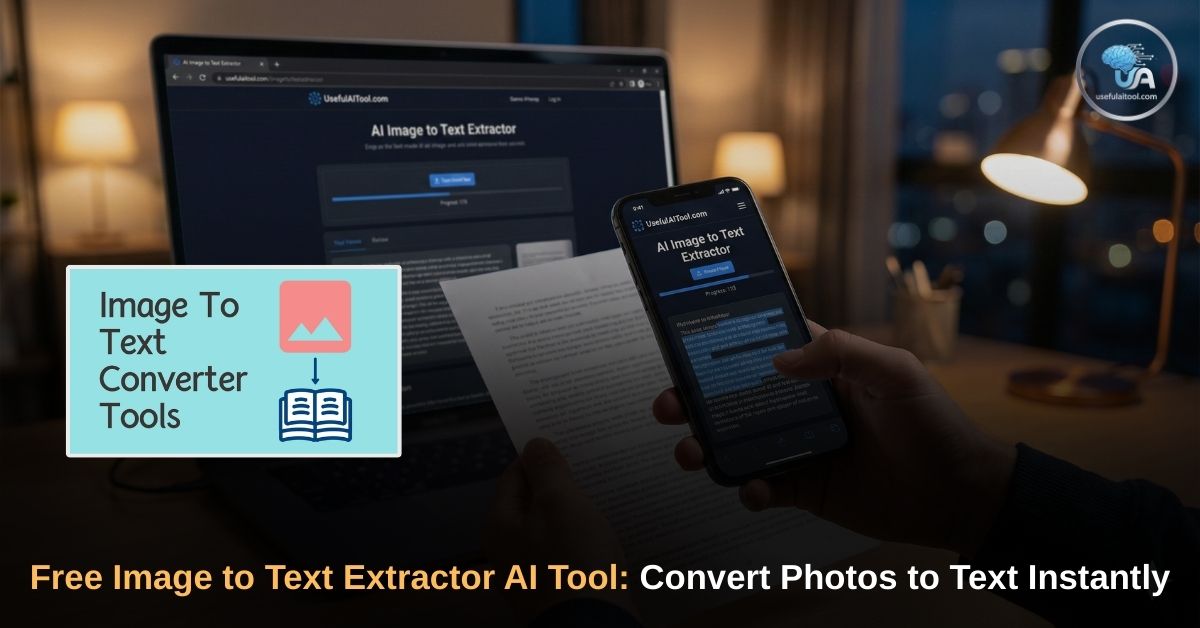
Free Image to Text Extractor AI Tool: We have all been there. You are watching a webinar and a slide pops up with crucial information, so you take a quick screenshot. Or a colleague sends you a scanned PDF of a printed contract, and you urgently need to edit a specific paragraph.
In the past, your only option was to place the image on one side of your screen, open a Word document on the other, and painstakingly type out every single word. Not only is this incredibly time-consuming, but it also leaves room for frustrating typos and human error.
Welcome to the future of productivity. The UsefulAITool Image to Text Extractor AI is a powerful, 100% free web-based utility designed to solve this exact problem. With a single click, our tool uses advanced Optical Character Recognition (OCR) technology to scan your images and instantly pull out the text for you to copy, paste, and edit.
Whether you are a student digitizing class notes, a developer grabbing code from a video tutorial, or a business professional processing invoices, this tool is designed to save you hours of manual labor.
What is an Free Image to Text Extractor AI Tool (OCR)?
To understand why this tool is so magical, it helps to understand the technology behind it. An Image to Text Extractor relies on a technology known as Optical Character Recognition (OCR), powered by Artificial Intelligence.
When you look at a photograph of a page of a book, your human brain instantly recognizes the dark squiggles as letters and words. A computer, however, just sees a grid of colored pixels. It does not natively understand that a cluster of black pixels forms the letter “A”.
OCR AI acts as the computer’s brain. When you upload an image to our tool, the AI scans those pixels, analyzes the patterns, and matches them against thousands of trained fonts and handwritten styles. It then translates those pixel patterns into actual, selectable, and editable machine-encoded text.
Our specific tool uses one of the most advanced, industry-leading OCR engines available today, ensuring maximum accuracy even with low-resolution images or complex formatting.
Key Features of the UsefulAITool Extractor
There are dozens of generic image-to-text converters on the internet, but most of them come with hidden catches: forced account sign-ups, aggressive paywalls, or daily upload limits. We built our tool to be radically different.
📷 AI Image to Text Extractor
Here is what makes our AI Text Extractor the best choice for your daily workflow:
1. 100% Free with No Hidden Limits
We believe essential productivity utilities should be accessible to everyone. Our tool does not require a subscription, a credit card, or even an email address. You can extract text from five images or five hundred images—it will always be completely free.
2. Unmatched Privacy (Local Browser Processing)
This is our most important feature. Most online OCR tools force you to upload your sensitive images (like tax documents, medical records, or private contracts) to their remote servers for processing. This is a massive privacy risk.
Our tool processes everything locally inside your web browser. When you drag and drop an image into our extractor, the AI engine downloads directly to your device and reads the image right there. Your private photos never leave your computer, and they are never stored on our servers.
3. Dual Language Support (English & Hindi)
The internet is global, and your tools should be too. While most standard extractors only recognize English characters, our AI is bilingual. Using the dropdown menu, you can extract:
- Pure English text
- Pure Hindi text (Devanagari script)
- A mix of both English and Hindi simultaneously
This makes it the perfect utility for regional content creators, translators, and Indian professionals dealing with bilingual government documents or news clippings.
4. Clean, Distraction-Free Dark Mode Interface
If you are working late at night or staring at screens all day, glaring white webpages can cause severe eye strain. We designed our tool with a sleek, premium dark-mode interface that is easy on the eyes and visually intuitive.
How to Use the AI Text Extractor
Using the tool is incredibly straightforward. It requires zero technical knowledge and works seamlessly on both desktop computers and mobile phones.
Step 1: Upload Your Image Click on the designated upload zone or simply drag and drop your image file directly onto the page. We support all major image formats, including high-quality JPGs, standard PNGs, and modern WEBP files.
Step 2: Select Your Language Before extracting, tell the AI what it is looking at. Select English, Hindi, or a combination of both from the dropdown menu. Giving the AI the correct language parameters drastically improves the accuracy of the final text.
Step 3: Click “Extract Text” Hit the magic button. If this is your very first time using the tool, the progress bar might take a few seconds as it securely loads the AI engine into your browser’s memory. For every image after that, the extraction will be nearly instantaneous.
Step 4: Copy and Edit Once the progress bar hits 100%, your text will appear in the result box below. You can make quick edits right there in the box, or click the convenient “Copy Text” button to instantly save it to your clipboard for use in Word, Google Docs, or your preferred text editor.
Who Can Benefit from This AI Tool?
The ability to digitize printed or un-selectable text is a superpower across dozens of different industries.
- Students & Researchers: Stop manually retyping quotes from library books or restricted PDF journals. Snap a picture with your phone, run it through the extractor, and instantly drop the quote into your essay. (Pair this with our Pomodoro Focus Timer to maximize your study sessions!)
- Developers & Coders: Watching a YouTube coding tutorial where the instructor didn’t provide the source code? Take a screenshot of the video player and extract the code snippet instantly to paste into your IDE.
- Content Creators & Social Media Managers: Found an inspiring quote on Instagram or Pinterest that you want to repurpose for your own feed? Save the image, extract the text, and redesign it using your own branding.
- Administrative Professionals: Easily digitize physical business cards, receipts, and printed invoices without needing an expensive, clunky desktop scanner.
Optimize Your Digital Workflow
At UsefulAITool, our mission is to provide you with the resources you need to work smarter, not harder. Manually typing out text is a task of the past. By leveraging the power of Artificial Intelligence directly within your web browser, you can reclaim your time and focus on the creative, high-impact work that actually matters.
While you are upgrading your workflow, don’t forget to check out our other free productivity utilities. If you need to save video tutorials for offline viewing, try our lightning-fast All-in-One Video Downloader.
Bookmark this page right now—you never know when you will urgently need to pull text from an image. Try the Image to Text Extractor AI above and experience the magic for yourself!